Between lecture slides, scholarship applications, research papers, and internship forms, college students deal with more PDFs than they probably expected. And sooner or later, simply opening a document isn’t enough.
Maybe you need to correct a mistake in a PDF assignment, combine several lecture handouts, add your signature to a form, or highlight important sections before an exam.
The good news? You don’t necessarily need expensive professional software to handle these tasks.
We’ve rounded up seven PDF editors worth considering in 2026, from free desktop tools to convenient browser-based platforms. Each offers a different balance of features, accessibility, and cost.
Quick Comparison: Best PDF Editors for Students
| PDF Editor | Best For | Free Option |
|---|---|---|
| PDF Guru | All-in-one online document tasks | Limited; paid plans |
| PDFgear | Free everyday PDF editing | Yes |
| Adobe Acrobat | Comments, forms, and professional workflows | Limited |
| Smallpdf | Quick browser-based PDF tasks | Limited |
| PDF24 Tools | Free merging, compression, and page management | Yes |
| Sejda | Occasional editing of existing PDF text | Limited |
| Canva | Visually appealing PDF projects | Yes, with limitations |
1. PDF Guru — Best for All-in-One Online PDF Tasks
Website: https://pdfguru.com/
When you’re juggling assignments, university forms, and study materials, having several document tools in one place can make life easier.
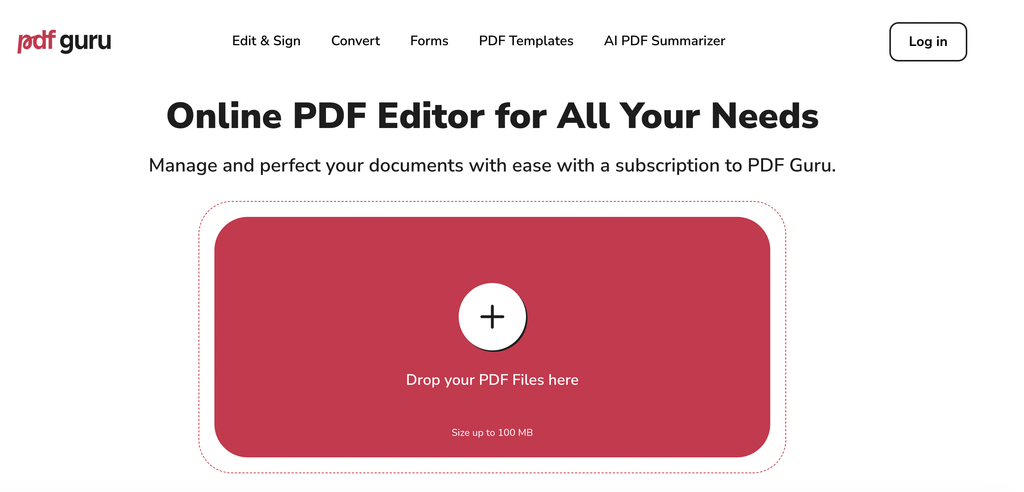
PDF Guru is a browser-based platform designed to handle a wide range of PDF tasks without requiring a traditional desktop installation.
Its toolkit includes PDF editing, file conversion, compression, merging, splitting, electronic signatures, and optical character recognition (OCR).
For students, one particularly useful scenario is turning a collection of separate lecture documents into something easier to organize. You can also annotate readings, complete forms, or convert documents into other formats.
Key features:
- Edit text and add annotations to PDFs.
- Merge, split, compress, and organize files.
- Convert documents between common formats.
- Fill out forms and add electronic signatures.
- Work with scanned documents using OCR.
Pros: Broad selection of tools; browser-based workflow; useful for administrative paperwork and coursework.
Cons: Continued use generally requires a paid subscription; check the checkout terms before purchasing.
Best for: Students who want a single online destination for different PDF-related tasks.
Our take: PDF Guru is worth considering when convenience matters more than having a completely free editor.
2. PDFgear — Best Free PDF Editor for Everyday Use
Website: https://www.pdfgear.com/
PDFgear is an appealing choice for students who want to avoid another subscription.
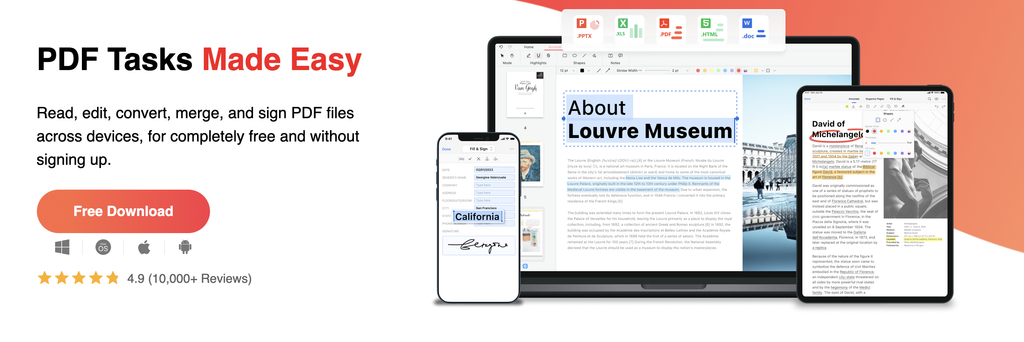
It offers free PDF tools for editing, annotation, signing, conversion, and page organization. Its desktop application is particularly useful when you need more extensive editing capabilities.
Imagine downloading a professor’s PDF handout and realizing you need to add notes, rearrange pages, or update existing text. PDFgear can handle many of these tasks without requiring a paid upgrade.
Key features:
- Edit and annotate PDF documents.
- Add signatures and complete forms.
- Rearrange, rotate, and delete pages.
- Convert PDFs into other formats.
- Access desktop and online tools.
Pros: Free tools; no watermark on supported exports; broad functionality.
Cons: Capabilities differ between the online editor and desktop application; complex PDF layouts can still be difficult to modify.
Best for: Students looking for a capable free alternative to paid PDF software.
Our take: PDFgear is a strong starting point if your budget is zero.
3. Adobe Acrobat — Best for Professional Documents and Forms
Website: https://www.adobe.com/acrobat/
Adobe Acrobat is one of the most recognizable names in PDF software.
For college students, its free online tools can be useful for highlighting readings, adding comments, filling forms, and signing documents. More advanced editing capabilities are available through paid Acrobat plans.
This can be particularly helpful when preparing internship paperwork, scholarship applications, or documents that require detailed review.
Key features:
- Add comments and highlights.
- Fill and sign PDF forms.
- Share documents for review.
- Access more advanced editing with paid plans.
Pros: Familiar PDF ecosystem; useful collaboration features; professional document workflows.
Cons: Full editing features can require a subscription; some online workflows require an Adobe account.
Best for: Students regularly working with formal documents or collaborative reviews.
Our take: A dependable option, especially if your college already provides access to Acrobat.
4. Smallpdf — Best for Quick PDF Tasks in Your Browser
Website: https://smallpdf.com/
Sometimes you don’t need a full editor. You just need to compress a file before uploading it to a university portal or convert a document into PDF format.
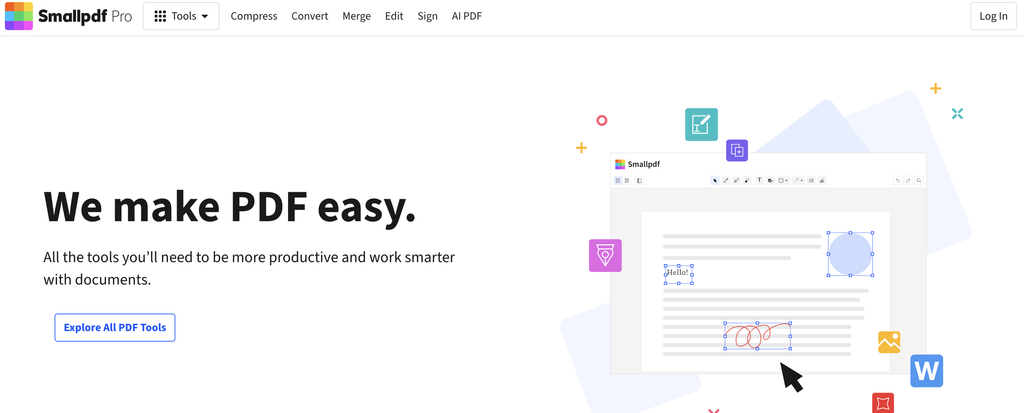
Smallpdf focuses on making these everyday tasks approachable through a clean web interface.
Its tools cover common jobs such as compression, conversion, signatures, and basic document editing.
Key features:
- Compress large PDF files.
- Convert between PDF and other formats.
- Merge and split documents.
- Add annotations and signatures.
Pros: Convenient online interface; useful for occasional tasks; no desktop installation needed.
Cons: Free usage is restricted; some editing and advanced tools require a paid plan.
Best for: Students who need fast document conversions and occasional edits.
Our take: Particularly convenient for simple tasks you don’t perform every day.
5. PDF24 Tools — Best Completely Free PDF Toolkit
Website: https://tools.pdf24.org/en/
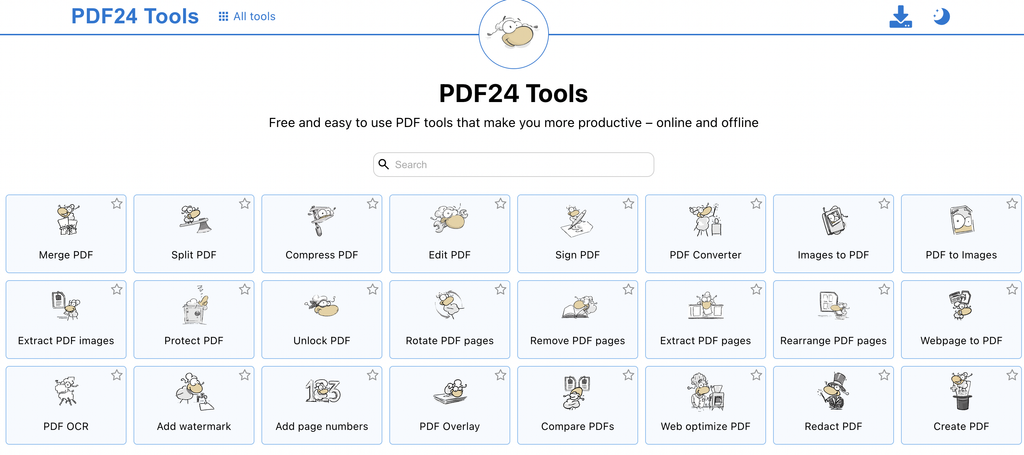
PDF24 Tools is a practical choice for students who frequently need to combine, compress, or organize documents.
Its browser-based tools are free, and PDF24 also offers a Windows desktop application called PDF24 Creator.
The desktop version can process documents locally, which is useful when you’d rather not upload files to an online service.
Key features:
- Merge, split, and compress PDFs.
- Add text, images, and annotations.
- Reorder or extract pages.
- Convert files and run OCR.
- Use PDF24 Creator offline on Windows.
Pros: Free tools; no account required for many tasks; extensive document utilities.
Cons: The online editor is more focused on adding content and annotations than on sophisticated modification of existing text; the offline desktop application is Windows-only.
Best for: Students who frequently organize large collections of lecture PDFs.
Our take: An excellent free utility toolkit to keep bookmarked.
6. Sejda — Best for Occasional Text Editing
Website: https://www.sejda.com/
Sejda offers both online and desktop PDF tools, including options for modifying text in existing documents.
That makes it useful when you need to correct a line in a PDF rather than simply place a text box on top of the page.
The free version has usage limits, so it’s better suited to occasional editing than processing dozens of assignments every day.
Key features:
- Edit existing PDF text.
- Merge and split documents.
- Fill forms and add signatures.
- Organize pages.
- Access browser-based and desktop tools.
Pros: Practical editing features; multiple platforms; useful for occasional corrections.
Cons: The free desktop plan limits daily tasks and document size; more extensive use requires payment.
Best for: Students who occasionally need to change existing text in a PDF.
Our take: Worth keeping as a backup when basic annotation tools aren’t enough.
7. Canva — Best for Creative PDF Projects
Website: https://www.canva.com/pdf-editor/
Not every college PDF is a formal document. Sometimes it’s a club flyer, event handout, portfolio, or class presentation.
That’s where Canva can be especially useful.
Canva lets you import PDFs and work with them in its visual design editor, making it easier to add graphics, change layouts, and produce polished materials.
However, importing a complex PDF doesn’t guarantee that every original element will remain perfectly editable.
Key features:
- Import PDF documents.
- Customize layouts, text, and graphics.
- Use design templates and visual assets.
- Export finished projects as PDFs.
Pros: Beginner-friendly design tools; useful templates; strong creative flexibility.
Cons: Complex PDF imports may not preserve formatting; some assets and features require payment.
Best for: Students creating visual projects, posters, portfolios, and event materials.
Our take: Choose Canva for design-focused PDFs rather than complicated technical document editing.
How to Choose the Right PDF Editor for College
Before choosing an editor, think about what you actually need to do.
If you want to spend nothing: Start with PDFgear or PDF24 Tools.
If you want an all-in-one browser-based platform: Consider PDF Guru.
If you need to edit existing PDF text occasionally: Look at Sejda or PDFgear’s desktop application.
If you’re completing formal documents: Adobe Acrobat may be a convenient option.
If you’re designing something creative: Canva is the better fit.
One important distinction: adding a text box to a PDF isn’t the same as editing text already embedded in the file. Check which type of editing the tool supports before uploading your assignment.
Frequently Asked Questions
What is the best free PDF editor for college students?
PDFgear and PDF24 Tools are both strong free options. PDFgear is useful for broader document editing, while PDF24 excels at merging, compressing, converting, and organizing PDFs.
Can I edit a PDF without Adobe Acrobat?
Yes. PDF Guru, PDFgear, Sejda, and other services offer alternatives. Their editing capabilities and free-use limits vary.
Are online PDF editors safe for university documents?
Online editors require you to upload files to a service. For documents containing sensitive personal information, consider an offline editor or a university-approved platform and review the provider’s privacy policy.
Can I edit a scanned PDF?
You generally need OCR software to recognize text in a scanned document. Several editors on this list offer OCR tools, although availability and limits vary.
Final Thoughts
The best PDF editor isn’t necessarily the one with the longest feature list. It’s the one that solves your everyday document problems without wasting your time or money.
For most students on a tight budget, PDFgear and PDF24 are sensible places to start. PDF Guru offers a convenient all-in-one online workflow, while Adobe Acrobat, Sejda, Smallpdf, and Canva serve more specific needs.
Before paying for a subscription, check whether your college already provides access to premium PDF software through its student portal.